★★★ newtastic Extensions · exclusive to our clients ★★★
newtastic Editorial
newtastic Editorial

Editorial work at a glance.

Your most important article lists as menu items – one click instead of filtering again, even for hundreds of articles.
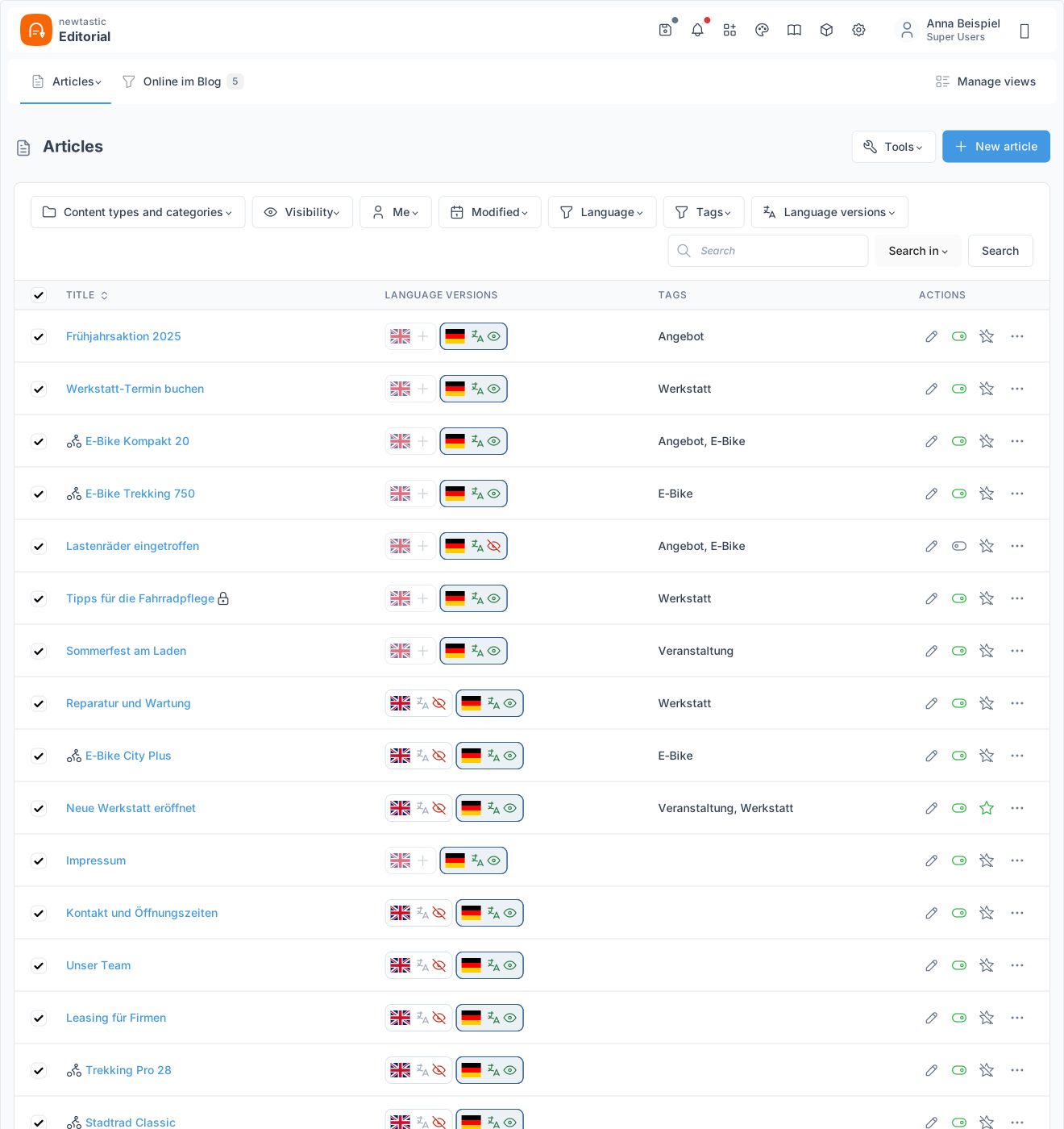
Your articles, the way you work with them.

newtastic Editorial: Your articles, the way you work with them.
01 / In short

In short.

The problem

Joomla's article list has no saved lists, no custom fields and no filter such as “missing in English”.

The solution

Editorial saves every filter as a view in the menu – with your own columns, fields and translation status.

Suitable for

Website managers who work with many articles every day – also multilingual and with custom fields.

02 / Your benefits

Why Editorial?

Lists as menu items

“My drafts” or “Scheduled this week” as a menu item – one click instead of filtering.

Rolling date ranges

“Last 30 days” or “expires soon” always stays current in your saved views.

Gaps per language

One filter shows all articles whose English or French version is missing.

Fields in the list

Custom fields as a column, filter or image – and editable right in the list.

What is really online?

One filter shows scheduled, expired and actually visible articles at a glance.

Up to 1,000 at once

Change category, language, access or tags for all matches in one single step.

For all extensions: No changes to the core Removable again Joomla updates as usual German and English

03 / How you work with it

How you work with it.

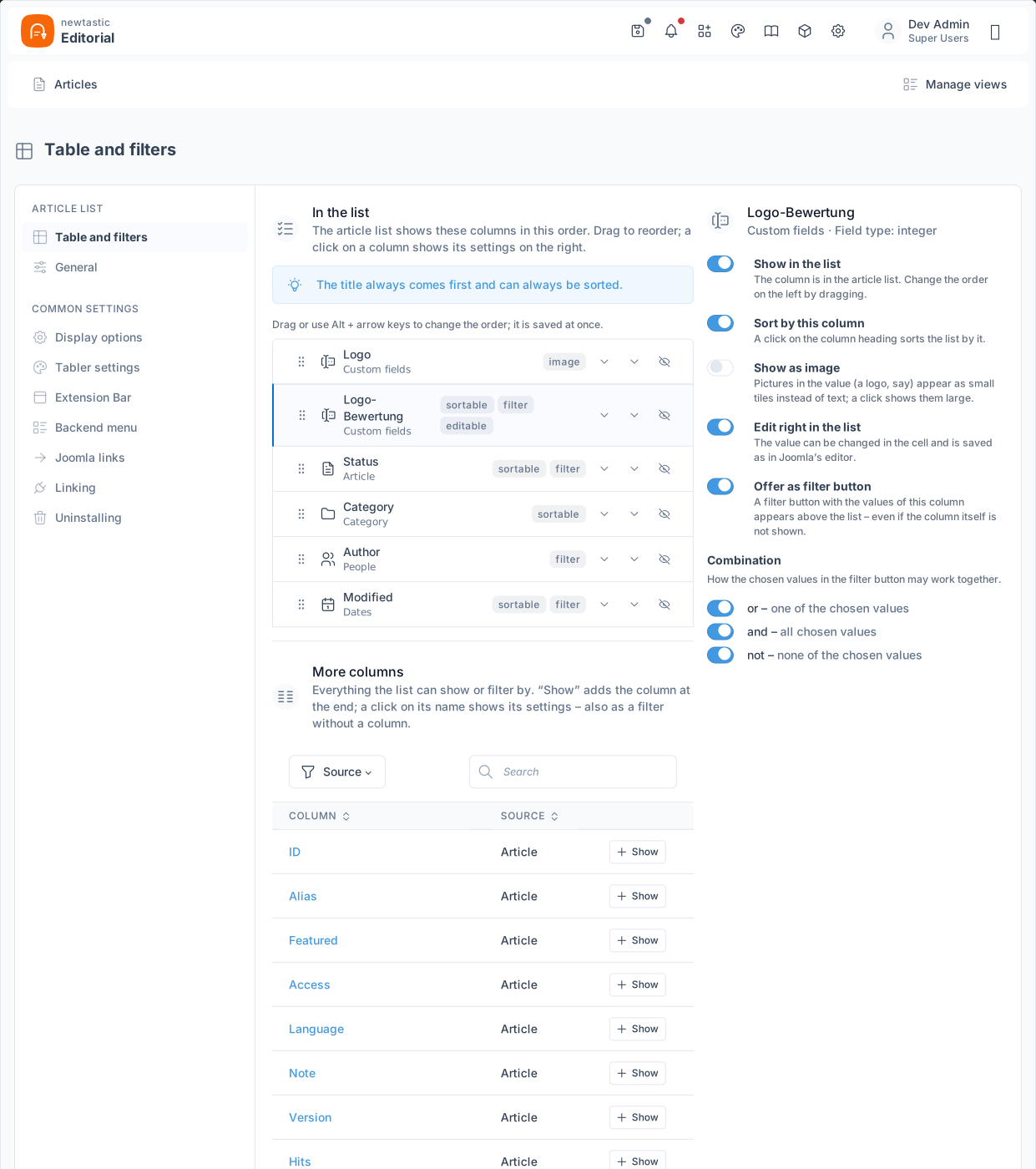
newtastic Editorial: “Table and filters”: the list's columns on the left, the settings of the chosen column on the right.

“Table and filters”: the list's columns on the left, the settings of the chosen column on the right.

Step 1

Choose columns

In “Table and filters” you decide which columns the list shows, in which order, and what you want to filter by. Every change is saved at once.

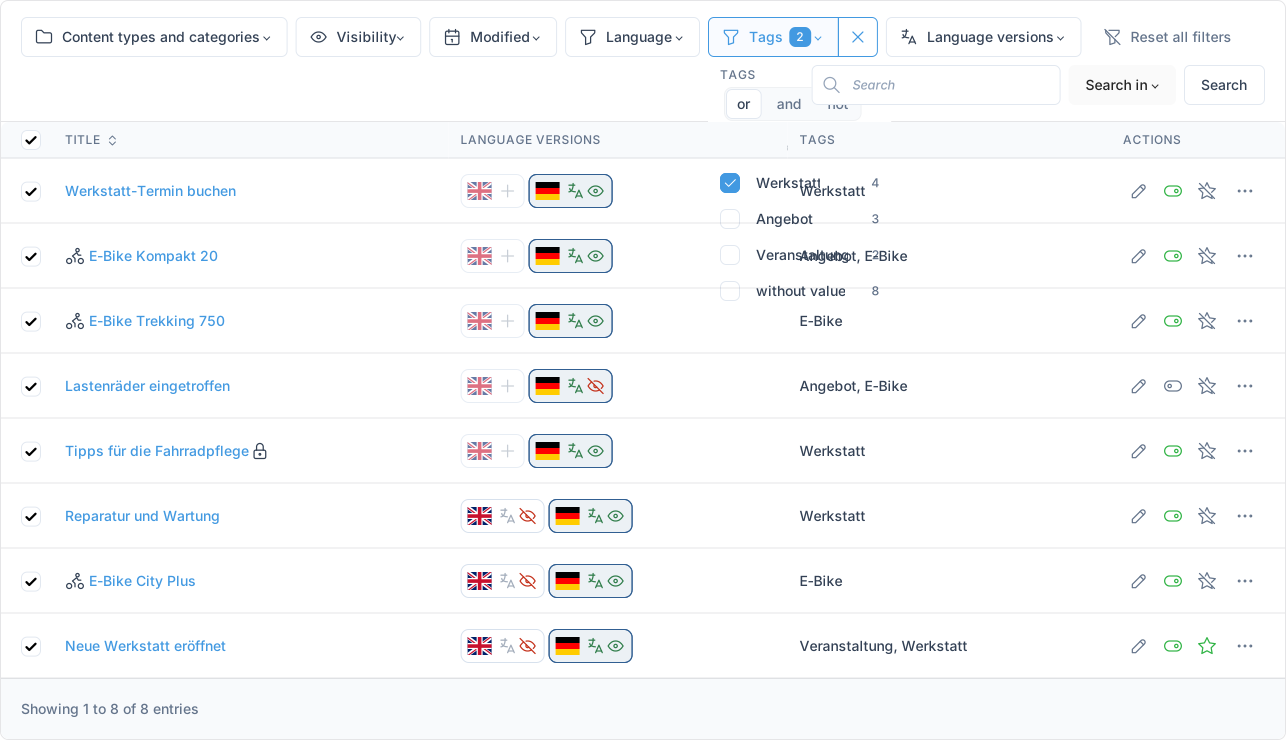
newtastic Editorial: A filter button with several chosen values and “or / and / not”.

A filter button with several chosen values and “or / and / not”.

Step 2

Narrow down

Combine categories, filter buttons, period and search until the list shows exactly what you need. If you like, the search also looks in the text, the meta data, notes and custom fields.

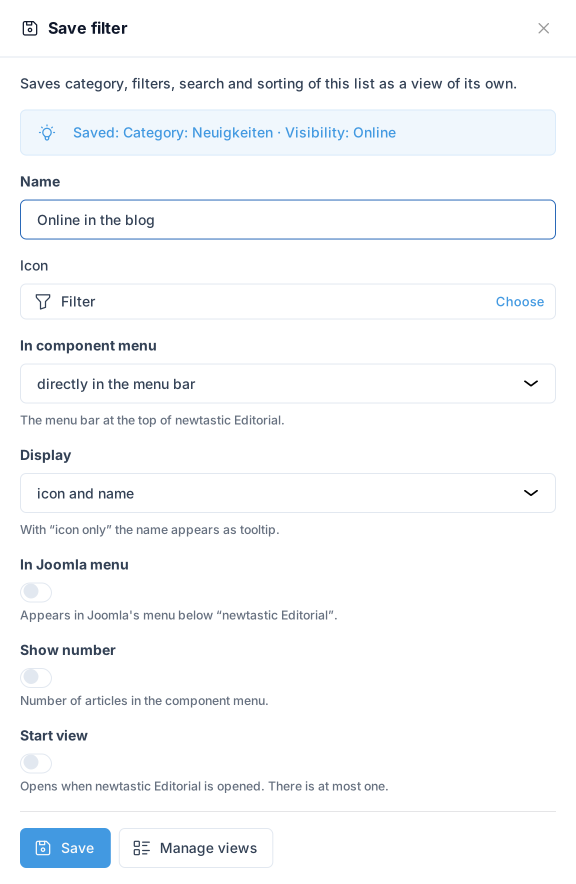
newtastic Editorial: The “Save filter” window with name, icon and menu options.

The “Save filter” window with name, icon and menu options.

Step 3

Save

“Save filter” turns the narrowing into a view with name and icon. You decide where it appears – directly in the menu bar, in Joomla's menu or as the start view.

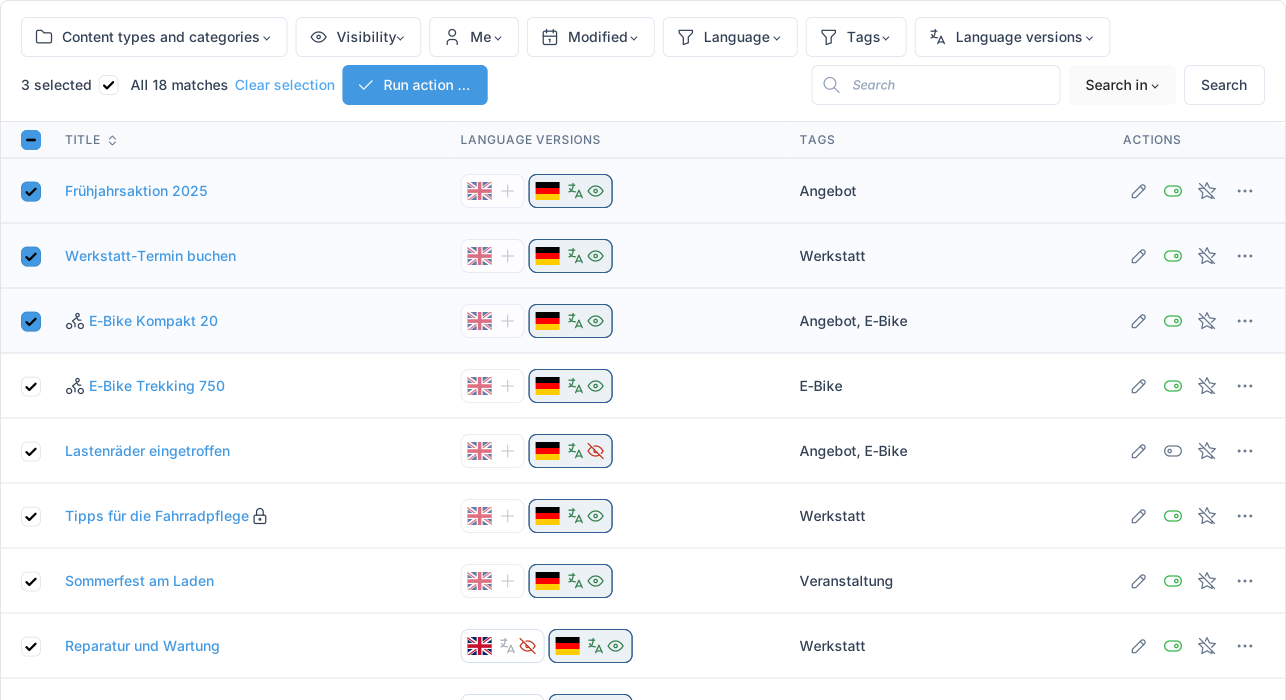
newtastic Editorial: Selected articles with the number, “All matches” and “Run action …”.

Selected articles with the number, “All matches” and “Run action …”.

Step 4

Act

A click on the title opens Joomla's editor; “Save & Close” takes you back to your view. Change single articles with the buttons in their row, several at once with a bulk action.

04 / More insights

More insights.

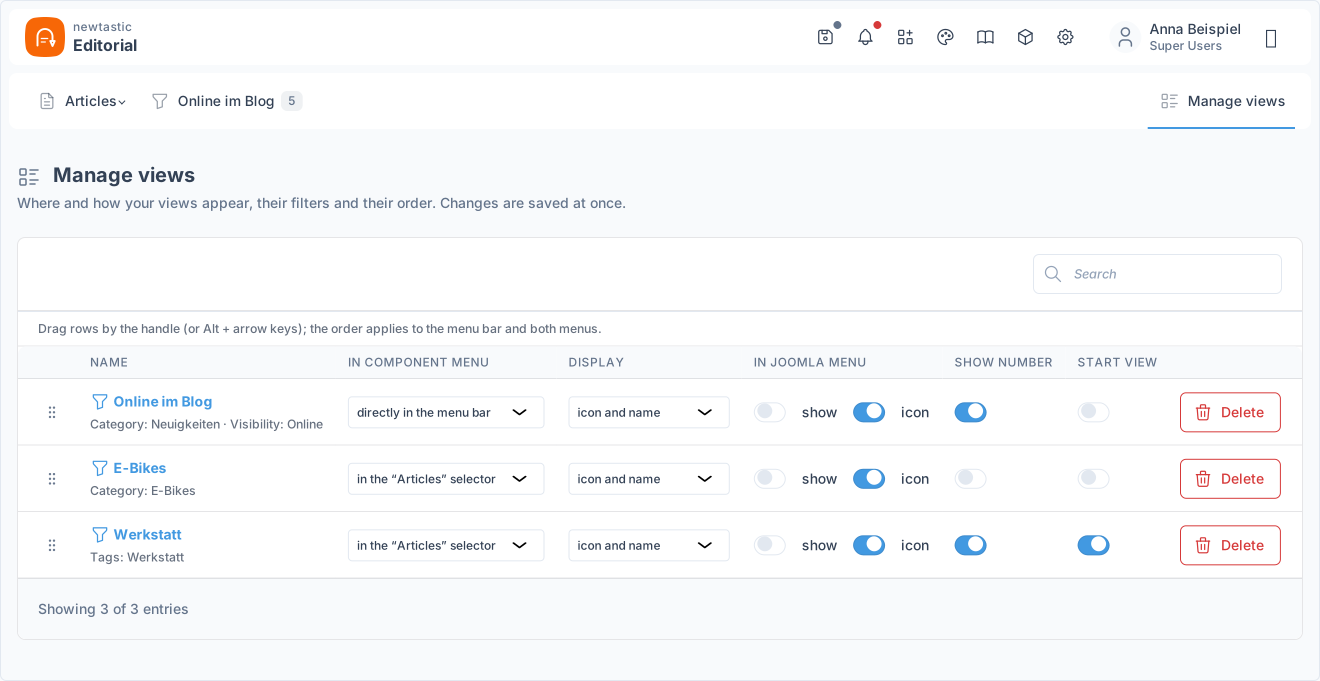
newtastic Editorial: All saved views with their menu options – reorder them by dragging.

All saved views with their menu options – reorder them by dragging.

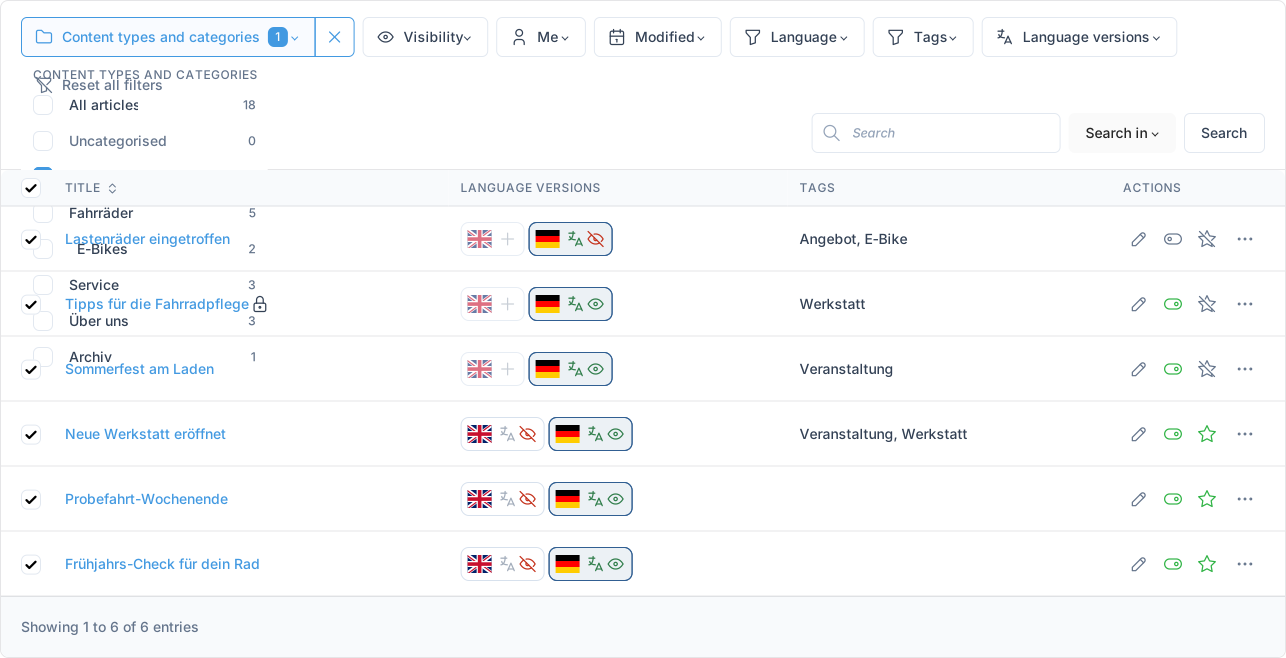
newtastic Editorial: The “Categories” filter button with the number of articles per category.

The “Categories” filter button with the number of articles per category.

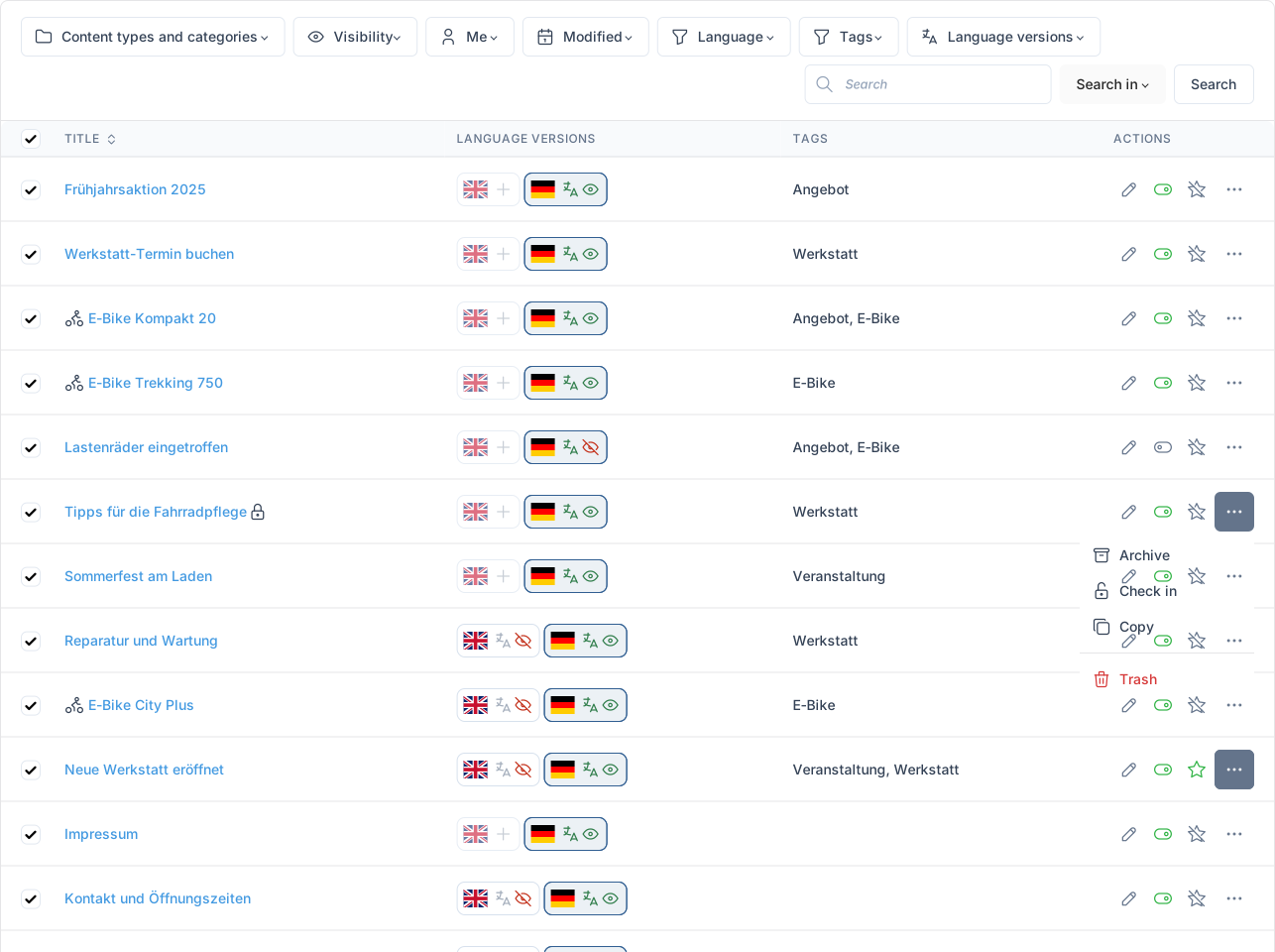
newtastic Editorial: The buttons at the end of a row with the “⋯” menu open.

The buttons at the end of a row with the “⋯” menu open.

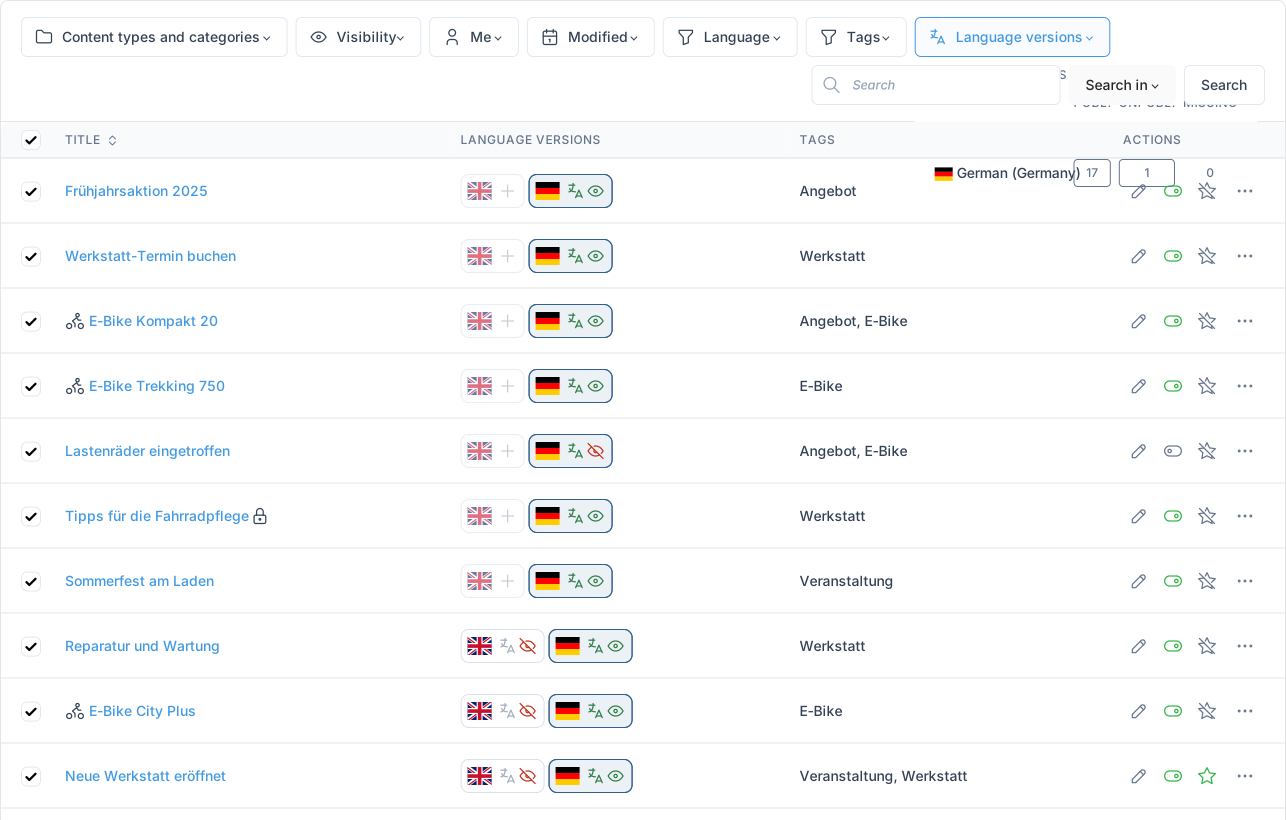
newtastic Editorial: The “Language versions” filter button: published, unpublished or missing per language.

The “Language versions” filter button: published, unpublished or missing per language.

05 / All functions

All functions.

Saved views

  • Save any filtered list as a view with name and icon
  • Views as menu items in Editorial and in Joomla’s main menu
  • Optional live article count in the menu
  • Saved periods like “last 30 days” always stay current
  • Your favourite view opens first when you start Editorial
  • Each view described in words, e.g. “Modified: last 30 days”
  • Update, rename, reorder by dragging and delete views
  • Shared by all Super Users, “My articles” adapts to the viewer

Filter and search

  • Categories including subcategories, with article counts
  • Visibility: online, scheduled, expired, offline, archived, trashed
  • “Me” filter: mine, last modified by me, checked out by me
  • Filters for author, tags, custom fields and more, with match counts
  • Combine values with “or”, “and”, “not”, plus “no value”
  • Join filters: all conditions or at least one
  • Periods in one click: today, 7/30/90 days, next 30 days …
  • Own periods: last N days, weeks, months or fixed from–to
  • Search title, text, meta, note, fields and author, or use “id:123”

Columns of your choice

  • Pick columns: alias, access, language, note, version, meta …
  • Category, author, created, modified, publish up and down
  • Tags, star rating and workflow stage as columns
  • Every custom field as a column, choices shown by name
  • Images from fields as thumbnails, enlarged with a click to browse
  • Reorder columns by dragging, sort with a click on the header
  • Default sort order and 20, 50 or 100 articles per page
  • Empty columns hide themselves, a lock marks checked-out articles

Right in the list

  • Edit simple text, number and choice fields right in the list
  • Saves without a button, with the same checks as the editor
  • Publish and feature without reloading the page
  • Archive, check in, copy and trash from the “⋯” menu
  • Reorder the articles of one category by dragging
  • Title opens Joomla’s editor, then back to the same list
  • New article with the selected category already set

Bulk actions

  • Select all matches across pages, up to 1,000 articles
  • Publish, hide, archive, feature, check in
  • Copy or move to another category
  • Set access or language, add or remove a tag
  • Trash, and delete for good only from the trash
  • Report of what was changed and what was skipped

Languages & content types

  • Filter language versions, e.g. all articles without an English one
  • Status per language as coloured codes or separate columns
  • One row per language group instead of every version
  • With newtastic Languages: chips with translation status
  • One click on a flag or chip opens exactly that version
  • With newtastic Content Types: icons and filter by content type

Safe via Joomla

  • Every change goes through Joomla: permissions, workflow, versions apply
  • No copies: you work with your real Joomla articles
  • Protection against simultaneous changes by others
  • Access for Super Users only
  • Clean uninstall, all articles stay unchanged
  • Guide built right into Joomla
06 / Frequently asked questions

Frequently asked questions.

Does Editorial replace Joomla's article management?

No. Editorial replaces the overview, not Joomla: you edit in Joomla's own editor, and every action runs through Joomla's article model. Permissions, workflow and other extensions apply as usual.

Who can work with Editorial?

Editorial is currently reserved for users with Super User rights. Whatever is changed in the list, Joomla checks just as it does in its own article list.

What happens to my articles if Editorial is removed?

They stay exactly as they are: Editorial reads the articles directly from Joomla and keeps no copy. Only the component and – depending on the setting – your saved views are removed; afterwards you carry on in Joomla's own article list.

Exclusive to our clients.

newtastic Editorial is not for sale. Have us build your website or migrate it to Joomla – and we set up newtastic Editorial for you.